【自动化测试】这可能是最全的自动化测试工作流程 —— Windows、Android和Browser篇
准备工作。配置PC的测试环境 开启Win10开发者模式 保持屏幕常亮,辅助工具 https://www.zhornsoftware.co.uk/caffeine/ 默认英文输入法

一、Windows
准备工作。配置PC的测试环境
- 开启Win10开发者模式
- 保持屏幕常亮,辅助工具 https://www.zhornsoftware.co.uk/caffeine/
- 默认英文输入法
1. Application
待测试的程序, Windows可执行程序(.exe)
2. Server
WinAppDriver, 运行启动服务
Driver,请仔细阅读关于此Driver的要求限制

3. Client
测试脚本语言 - Python
- Python环境搭建
- 依赖库
安装三方库 Appium-Python-Client 和selenium
pip install Appium-Python-Client
pip install selenium
4. 测试脚本示例
测试脚本包括三个阶段
- 测试前 - 连接至Server, 一些准备工作
- 测试中 - 寻找控件,执行操作, 验证对比
- 测试后 - 结束后操作
import time
import unittest
from appium import webdriver
from selenium.webdriver.common.keys import Keys

class AddLocalFileTests(unittest.TestCase):

    @classmethod
    def setUpClass(self):
        # 连接到测试的App, 这里替换成你自己的App, 需要先启动App,然后再连接到它
        desired_caps = {}
        desired_caps["app"] = "Root"
        desired_caps["platformName"] = "Windows"
        desired_caps["deviceName"] = "WindowsPC"
        self._desktopDriver = webdriver.Remote(command_executor='http://127.0.0.1:4723', desired_capabilities= desired_caps)
        earthWindow = self._desktopDriver.find_element_by_name("ArcGIS Earth")
        earthWindowhandle = earthWindow.get_attribute("NativeWindowHandle")
        earthWindowhandle = hex(int(earthWindowhandle))
        desired_caps_earth = {}
        desired_caps_earth["unicodeKeyboard"] = "true"
        desired_caps_earth["appTopLevelWindow"] = earthWindowhandle
        self._earthDriver = webdriver.Remote(command_executor='http://127.0.0.1:4723', desired_capabilities= desired_caps_earth)

    @classmethod
    def tearDownClass(self):
        # 断开连接
        self._earthDriver.quit()
        self._desktopDriver.quit()

    def test_add_data(self):
        # 选择本地文件
        self._earthDriver.find_element_by_accessibility_id("MainAddDataButton").click()
        time.sleep(3)
        self._earthDriver.find_element_by_name("Add Files").click()
        self._earthDriver.find_element_by_name("Select files").click()
        time.sleep(3)
        # 选择本地数据
        self._earthDriver.find_element_by_name("All locations").click()
        self._earthDriver.find_element_by_name("Address").send_keys(r'\\DESKTOP-QO5V6UK\ArcGISEarth\data\Shapefiles',Keys.ENTER)
        self._earthDriver.find_element_by_accessibility_id("1148").send_keys("usa-major-highways.shp",Keys.ENTER)

if __name__ == '__main__':
    # 运行测试脚本
    suite = unittest.TestLoader().loadTestsFromTestCase(AddLocalFileTests)
    unittest.TextTestRunner(verbosity=2).run(suite)
4.1 寻找控件
- 寻找控件的API
- 使用
Inspect工具和UIRecorder工具寻找控件
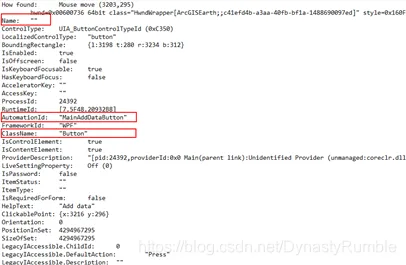
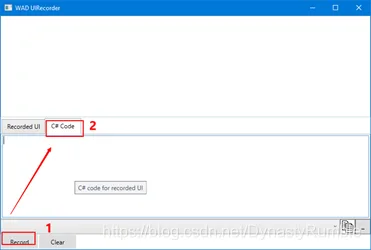
4.2 操作控件
- 鼠标操作
- 键盘操作
4.3 结果验证
- 图片对比
- 是否存在
4.4 测试报告
这项属于增强选项, 在找到每个控件的时候对控件进行高亮截图,方便后续调试
5. 项目架构
5.1 源码
测试脚本类 + 工具类 + Others
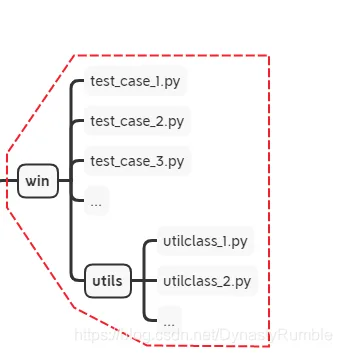
5.2 输入输出
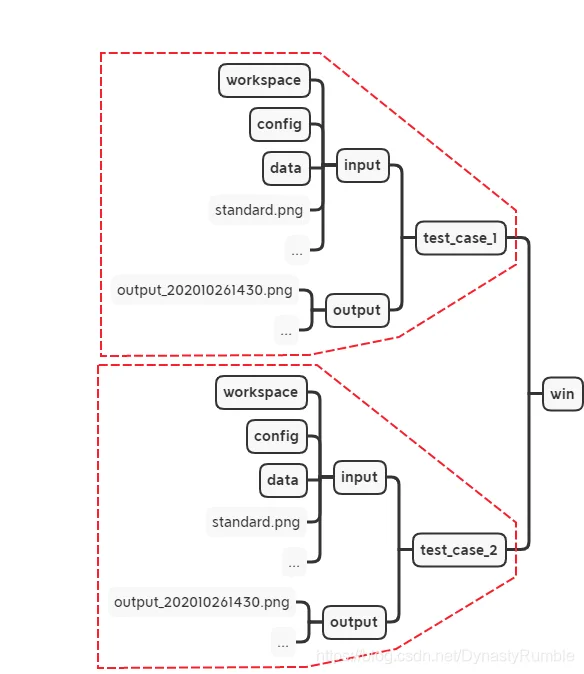
输入和输出
输入
- 测试数据
- workspace
- 用户配置
- 标准对比图片
- …
输出
- 测试截图
- 保存的数据
- …
6. 难点事项
6.1 等待时间
问题:
- 控件延时出现
- 图层渲染很慢
解决方式:
- 线程等待
- 隐式等待
- 显示等待
6.2 视角控制
特定视角难用键盘鼠标定位, 这里使用Bookmark定位视角
6.3 坐标
坐标分为
- 相对坐标
- 屏幕坐标
一般App类的控件的坐标都是相对App窗口的坐标,只要App窗口位于屏幕[0,0] , 那么App坐标就是屏幕坐标。但是对于一些特殊的控件而言,例如ComboBox,它的Item坐标是相对于ComboxBox,所以需要在Item的坐标的基础上加上ComboBox的坐标
二、Android
需要开启虚拟化和模拟器硬件加速设置
1. Application
你的 Android App
- 如果在模拟器上运行请输出 CPU_x86的apk包
2. Server
Appium Desktop, 运行启动服务
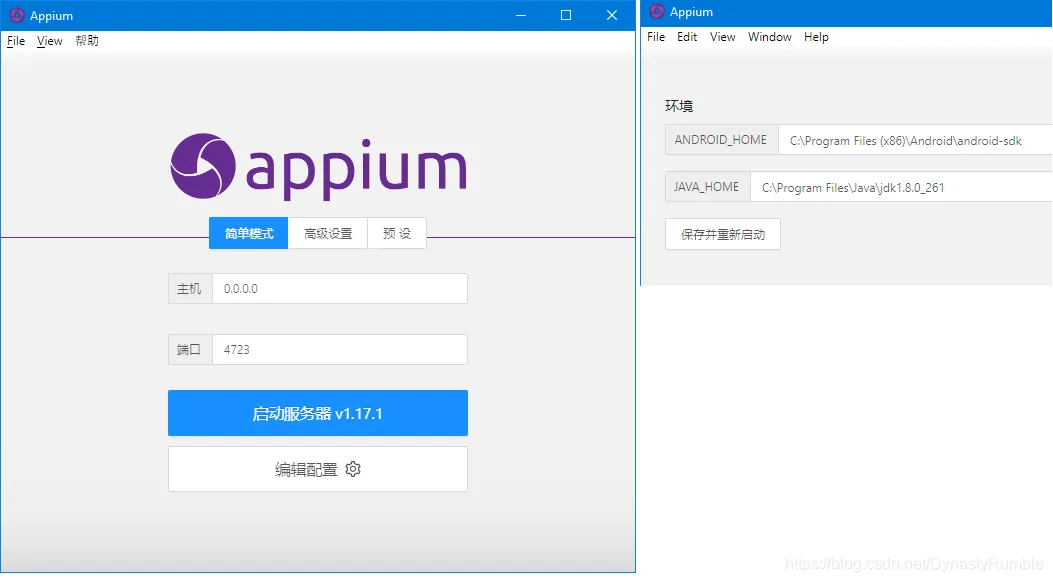
Android程序的Driver, 选择的Dirver不同,需要的依赖和配置的参数也不一样, 请仔细阅读不同Driver的详细信息
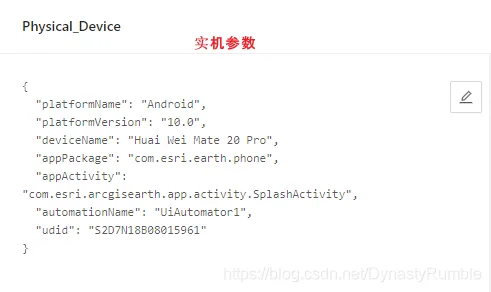
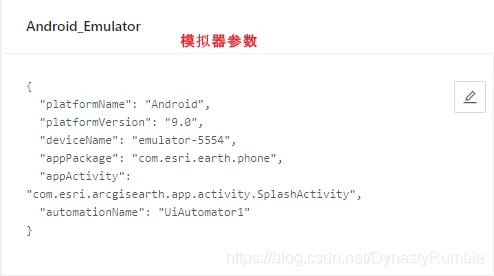
依赖
- JDK - 版本根据Driver类型选择
- Andoid SDK - 版本根据Driver类型选择
3. Client
测试脚本语言 - Python
选择测试设备。 真机和模拟器配置参数不一致,Appium API的支持也不一样, 模拟器API多余真机,所以推荐用模拟器做测试
- 真机
- 模拟器
模拟器使用原生的 Android Emulator, 模拟器下载配置
- Android Studio
- Visual Studio Xamarin
为提升模拟器速度,测试的APK的处理器应为 x86
4. 测试脚本示例
import time
import unittest
from appium import webdriver
from selenium.webdriver.common.keys import Keys

class SkipTipsTests(unittest.TestCase):

    @classmethod
    def setUpClass(self):
        # 连接到App, 换成你自己App的一些属性
        desired_caps = {}
        desired_caps["platformName"] = "Android"
        desired_caps["platformVersion"] = "9.0"
        desired_caps["deviceName"] = "emulator-5554"
        desired_caps["appPackage"] = "com.esri.earth.phone"
        desired_caps["appActivity"] = "com.esri.arcgisearth.app.activity.SplashActivity"
        desired_caps["automationName"] = "UiAutomator1"
        self._earthdriver = webdriver.Remote(command_executor='http://127.0.0.1:4723/wd/hub', desired_capabilities= desired_caps)

    @classmethod
    def tearDownClass(self):
        # 断开连接
        self._earthdriver.quit()

    def test_add_data(self):
        # 点击 Allowed
        time.sleep(1)
        self._earthdriver.find_element_by_id("com.android.packageinstaller:id/permission_allow_button").click()
        self._earthdriver.find_element_by_id("com.android.packageinstaller:id/permission_allow_button").click()
        self._earthdriver.find_element_by_id("com.android.packageinstaller:id/permission_allow_button").click()

        # 跳过提示页
        image_current = self._earthdriver.find_element_by_id("com.esri.earth.phone:id/new_feature_dot3")
        image_current.click()
        image_current.click()
        image_current.click()
        image_current.click()
        time.sleep(3)

if __name__ == '__main__':
    # 运行测试脚本
    suite = unittest.TestLoader().loadTestsFromTestCase(SkipTipsTests)
    unittest.TextTestRunner(verbosity=2).run(suite)
4.1 寻找控件
Appium Desktop Inspector,为Appium Desktop的内置功能,通过配置相关参数, 用来辅助寻找控件
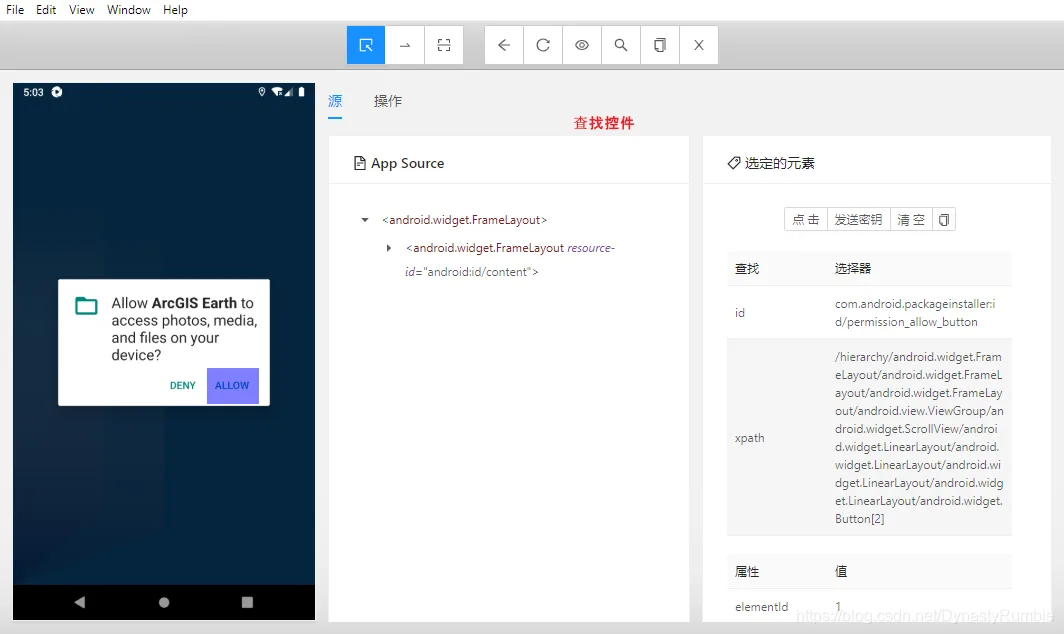
4.2 操作控件
和桌面App不一样,移动App的操作有自己的特殊性
- 点击操作 - 单击、长按,滑动 …
- 文本操作
4.3 结果验证
与桌面端类似
- 调用Appium API截图时注意避开手机顶部状态栏
4.4 测试报告
与桌面端类似
5. 项目架构
与桌面端类似
6. 难点事项
6.1 视角问题
没有开始做,提前想到的
6.2 网络问题
在公司里,实机没有网络问题,但是模拟器无法联网,目前还没有解决
三、Browser
1. Application
浏览器类型
- Google Chrome
- Fire Fox
- Internet Explorer
- …
这里以Chrome为例, 需要确定Chrome版本
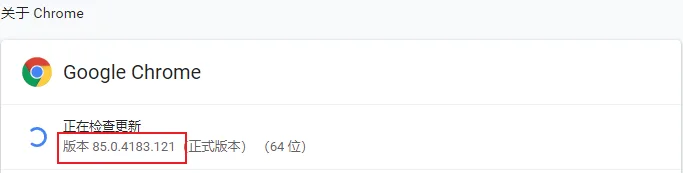
2. Server
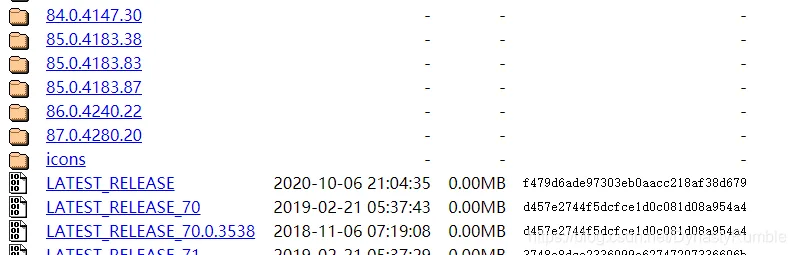
不同浏览器对应的Driver也不一致,
以Chrome为例,需要等于其版本对应的Driver
3. Client
测试脚本语言 - Python
- Python环境搭建
- 依赖库
安装三方库 selenium
pip install selenium4. 测试脚本示例
import time
import unittest
from selenium import webdriver
from selenium.webdriver.common.keys import Keys

class BaiduSearthTests(unittest.TestCase):
    @classmethod
    def setUpClass(self):
        # 把下载好的chromedriver.exe放到某个目录下
        options = webdriver.ChromeOptions();
        options.add_argument("start-maximized")
        self._chromedriver = webdriver.Chrome(executable_path='C:/Program Files (x86)/Google/Chrome/Application/chromedriver.exe',options=options)

    @classmethod
    def tearDownClass(self):
        # 断开连接
        self._chromedriver.quit()

    def test_baidu_searth(self):
        # 跳转至baidu页面
        self._chromedriver.get('http://www.baidu.com/')
        time.sleep(3)
        # 搜索
        self._chromedriver.find_element_by_id('kw').send_keys('Selenium百度百科' + Keys.ENTER)
        time.sleep(3)
        # 点击第一条结果
        self._chromedriver.find_element_by_id('1').find_element_by_tag_name('em').click()
        time.sleep(10)

if __name__ == '__main__':
    # 运行测试脚本
    suite = unittest.TestLoader().loadTestsFromTestCase(BaiduSearthTests)
    unittest.TextTestRunner(verbosity=2).run(suite)
4.1 寻找控件
浏览器 F12 查看源码, 和桌面端类似,但是可能更多的会用到 FindElementByCSS
4.2 操作控件
与桌面端类似
4.3 结果验证
与桌面端类似
4.4 测试报告
与桌面端类似
5. 项目架构
与桌面端类似
6. 难点事项
还没开始做,以后遇到再说